
Common Problems
(1) Choose Monitor > Router, and find that no data is displayed or the router traffic data size is greatly different from that in the real situation.
(2) The traffic of some region IP addresses is not monitored.
(3) Before upgrading to NTA V4.5R90F02SP06, the router can monitor traffic data, but after the upgrade, no data is displayed.
Troubleshooting
(1) Choose Configuration > Objects > Router, select a device, and then click Flow Configuration. Check whether the flow collection IP address is properly configured and the flow version and flow sampling ratio of the router are consistent with those on NTA.

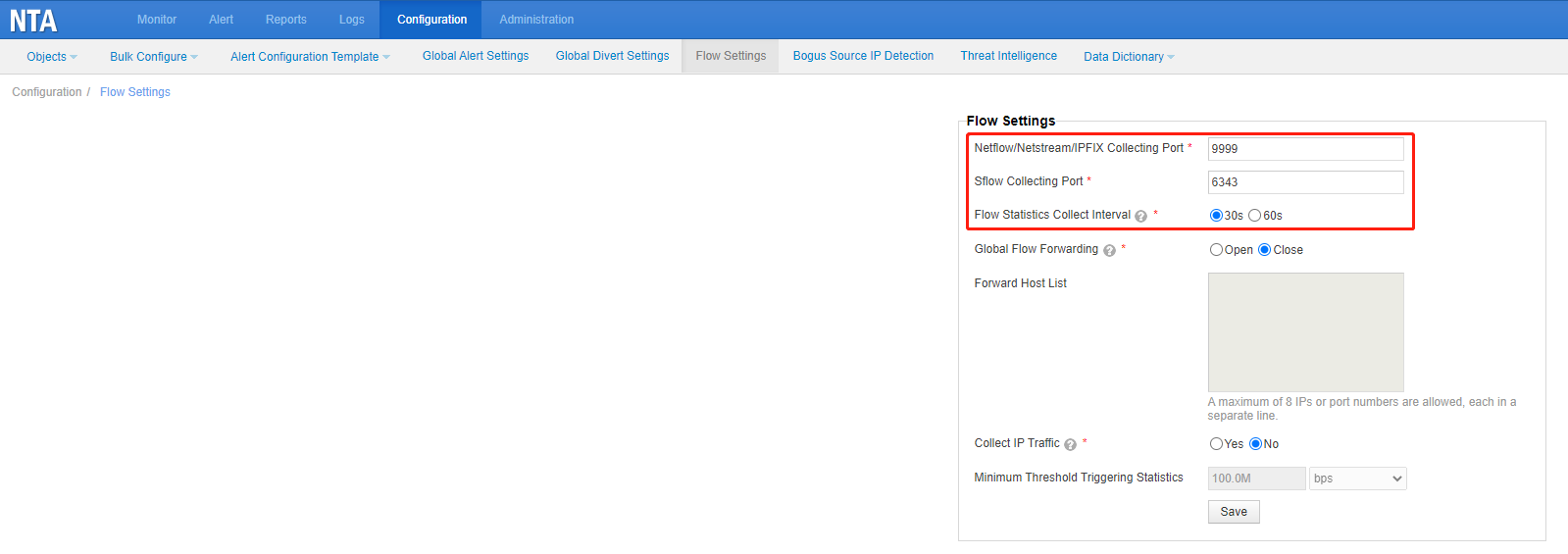
(2) Choose Configuration > Flow Settings, and check whether collection ports and flow statistics collection interval on the router are the same as those on NTA. The default flow statistics collection interval for NTA is 30 seconds. Usually, if the difference in traffic data between NTA and router is too large, it may be caused by different sampling ratios or statistics collection intervals.
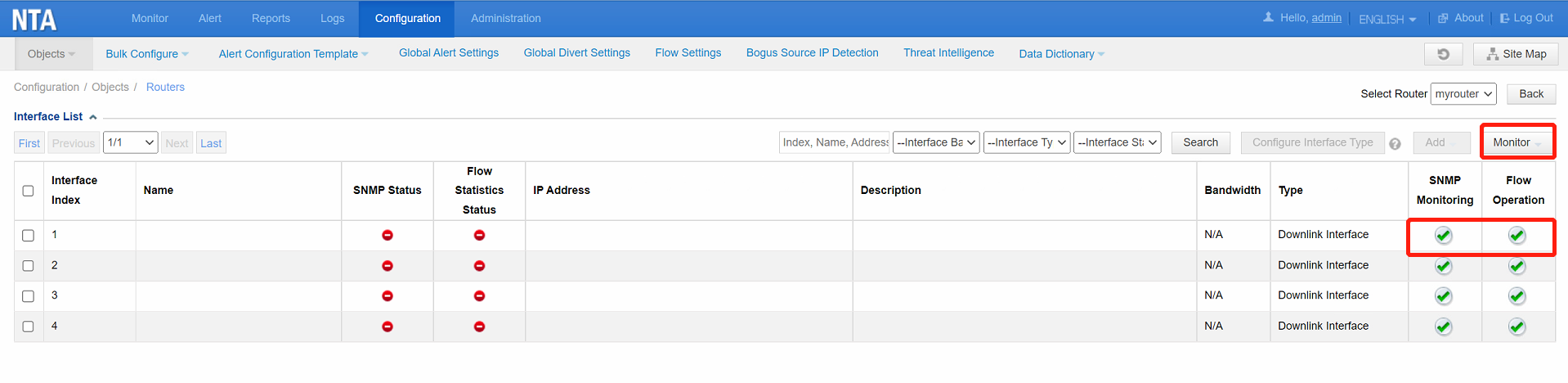
(3) NTA V4.5R90F02SP06 supports the flow statistics function. This function is disabled by default and can be manually enabled as required. In Configuration > Objects > Router page, click the number in the Interface Number column to go to the Interface List page. Click  Â to start collecting flow statistics, or click Monitor to select one from the drop-down box to start collecting flow statistics of all interfaces.
 to start collecting flow statistics, or click Monitor to select one from the drop-down box to start collecting flow statistics of all interfaces.
(4) Capture packets to analyze corresponding traffic. Filter the captured packets based on IP addresses to check whether NTA receives the corresponding traffic. If NTA does not receive it, check the router configuration. If NTA receives it and the preceding steps are correct, contact the NSFOCUS support team (email: support@nsfocusglobal.com).

