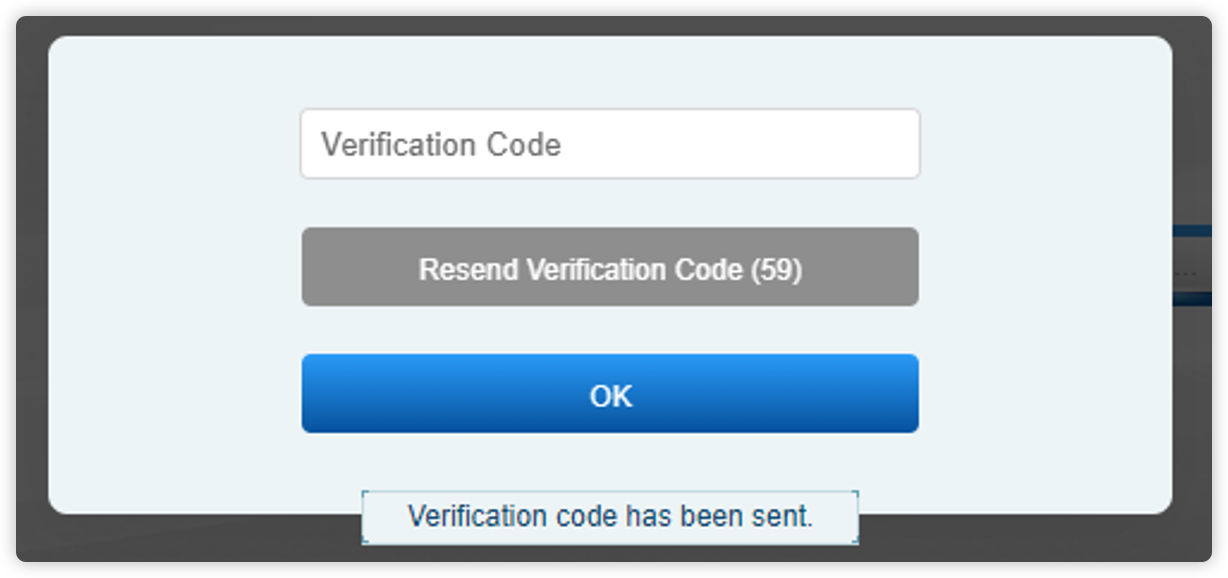
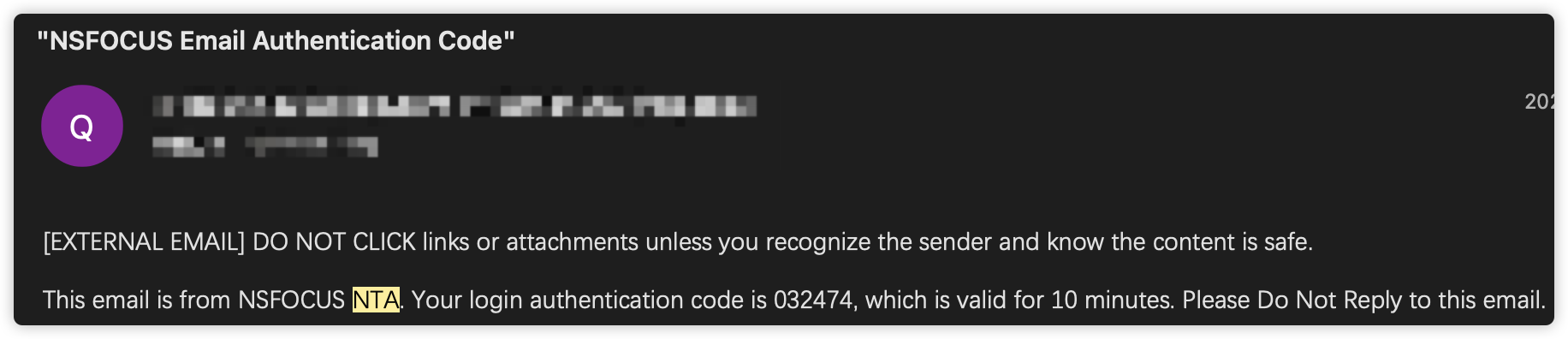
This article provides instructions on configuring and using email verification with password authentication to implement two-factor authentication (2FA) on NTA. The NTA version used in this article is V4.5R90F05. The email verification feature is unavailable if your device runs an earlier version. To use this feature, you must upgrade NTA to V4.5R90F05.
Prerequisites
To use email verification with NTA, you must first configure an email server on NTA to allow NTA to send emails. The email server configuration can be found on the NTA webpage under Administration > Third-Party Interface > Email Service > SMTP Server.
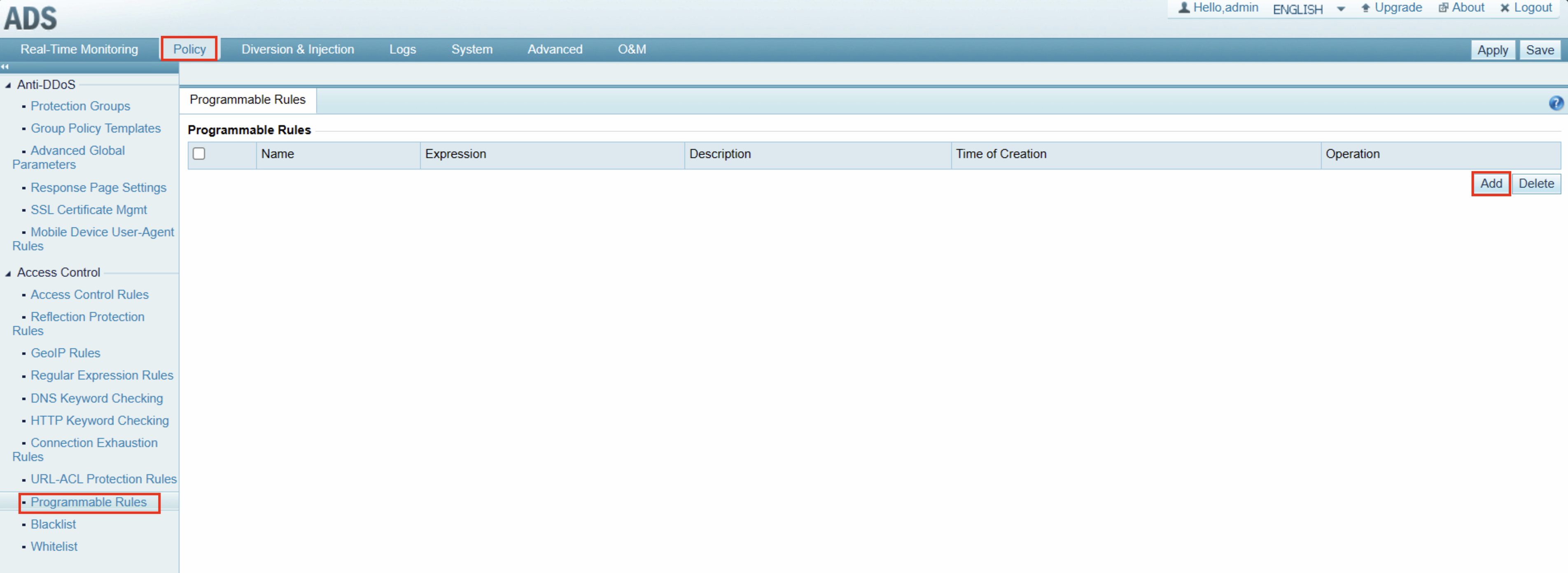
After configuring the SMTP server, click Send Test Mail to verify that the server is working properly. In the dialog box that appears, enter your email address to receive the test email.
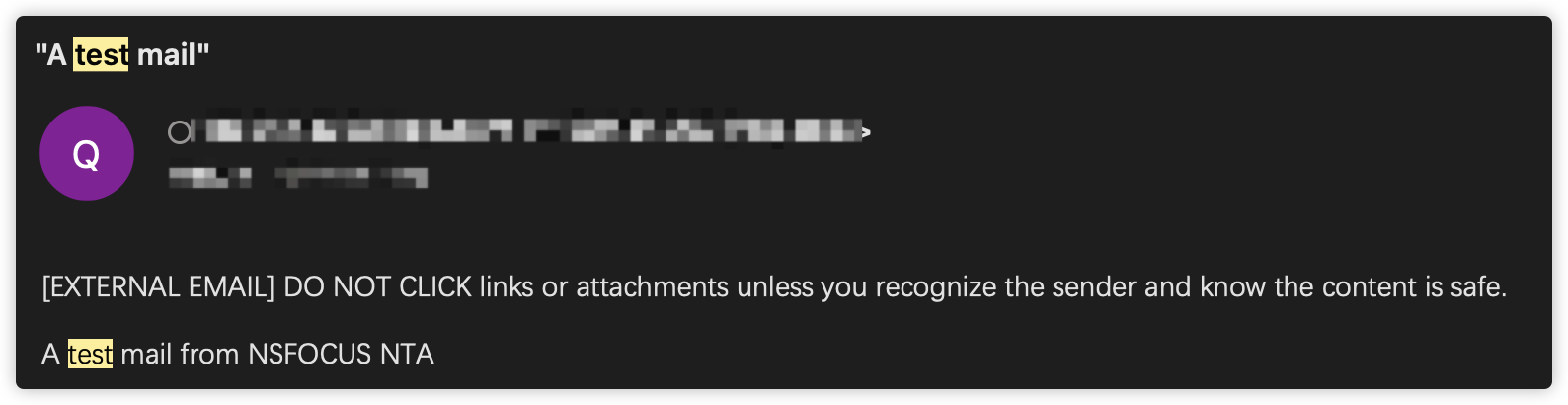
You will receive a test email in your mailbox if the configuration is correct.
Configure Email Verification for Login
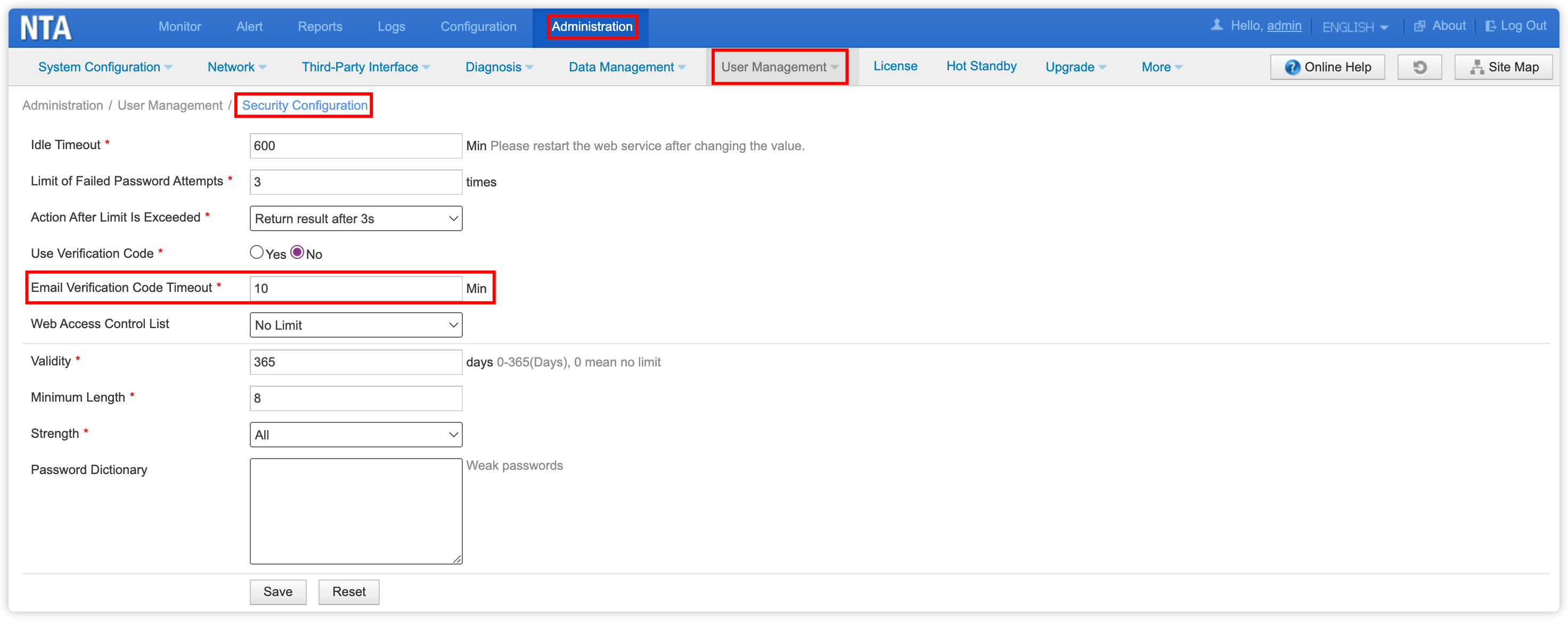
First, you can set the expiration time for the email verification code in Administration > User Management > Security Configuration. Change the Email Verification Code Timeout to control the validity period of the verification code.
Next, you can edit the authentication method for an account in Administration > User Management > Account Configuration.

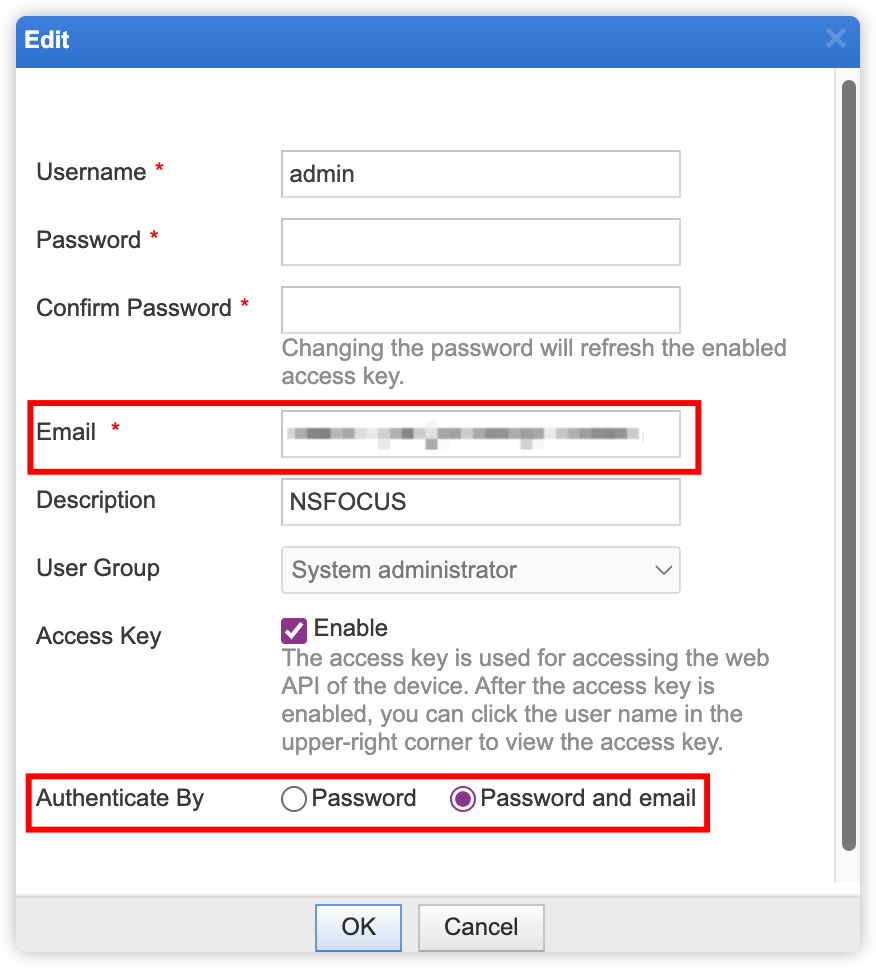
In this example, we will add email verification to the admin account. Click the Edit button for the admin account, and in the dialog box that appears, add the email address to receive the verification code. At the bottom, select Password and email for Authenticate By, and then click OK to save.

After making these changes, NTA will require email verification the next time you log in to the admin account.